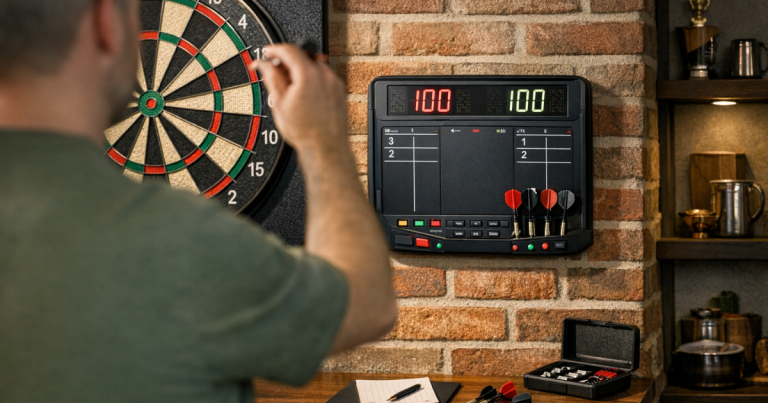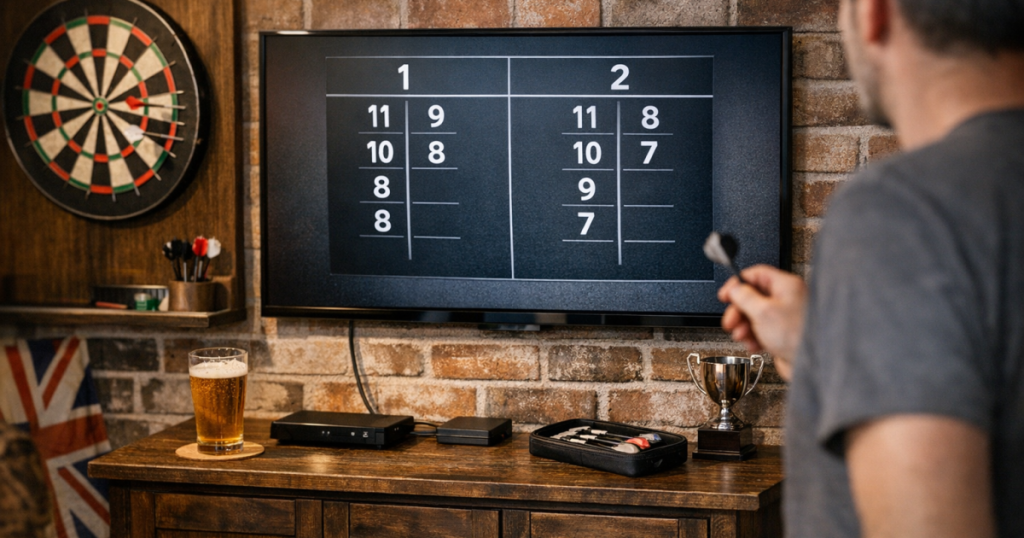
Putting a darts scoreboard on TV is one of the easiest ways to make a home darts night feel smoother: everyone can see the leg, the thrower stays focused, and nobody has to keep asking what is left. The neatest set-up is usually a phone, tablet or laptop doing the scoring, with the TV simply acting as a larger display.
You do not need a complicated tournament rig. For most home set-ups, the job is to get a clear scoring screen onto a bigger display, keep it readable from the oche, and make sure it does not interrupt the rhythm of throwing.
The quick answer
The simplest method is to run your scoring app or browser-based scoreboard on a laptop and connect it to the TV with an HDMI cable. If you prefer a cleaner look, use screen mirroring or casting from a phone, tablet or laptop, provided your TV and device support the same method and are on the same Wi-Fi network.
- Use HDMI when you want the most reliable connection.
- Use casting or screen mirroring when you want fewer visible cables.
- Use a laptop if you want easier score corrections and a bigger control screen.
- Use a phone or tablet if one person is already scoring from beside the oche.
- Keep a manual scoreboard nearby as a backup for longer sessions or league-style nights.
Step 1: Decide what the TV needs to show
Start with the game format rather than the technology. For a casual 501 night, you mainly need player names, current score, darts thrown and finish suggestions if your scoring tool provides them. For cricket, you need the numbers, marks and points to be easy to read at a glance. If cricket is a regular part of your rotation, it is worth understanding the manual method too; our guide to scoring Cricket darts on a wall scoreboard is a useful reference even if you prefer a digital display.
A TV scoreboard is most useful when it removes friction. If the screen is cluttered, too small, too bright or constantly needing attention, it can slow the game down. A plain scoring layout with large numbers is usually better than a busy display that looks impressive from close up but is awkward from the throw line.
Step 2: Choose a connection method
HDMI from a laptop
This is the most dependable route for many home players. Open your scoring screen on the laptop, connect the laptop to the TV using an HDMI cable, then choose the correct input on the TV. Set the laptop to mirror the display if you want the scorer to see exactly what appears on the TV, or use extended display mode if you want controls on the laptop and the public scoreboard on the TV.
Before match night, check the text size and scaling. Some TVs crop the edge of a computer screen, so look for picture settings such as screen fit, just scan, original or full pixel. Names, checkouts and scores should sit comfortably within the visible area.
Screen mirroring from a phone or tablet
Screen mirroring can work well when one person is scoring from a handheld device. The TV shows whatever is on the phone or tablet, so landscape mode usually gives the best scoreboard layout. Turn off message previews and unnecessary notifications before you start, because anything that appears on the scoring device may also appear on the TV.
The main trade-off is reliability. Mirroring depends on device compatibility, Wi-Fi stability and distance from the router. If the room is at the back of the house, in a garage conversion or near a weak signal area, test it before relying on it for a group session.
Casting to a compatible TV or streaming device
Casting can look tidier because the scoring device does not need to sit next to the TV. It works best when the scoring tool, browser tab or device supports casting in a way your TV recognises. Do a full test leg rather than stopping once the screen appears; the important checks are whether the display stays awake, updates quickly and remains readable once people are standing around the room.
Step 3: Put the TV where the score is useful
The TV does not have to sit above the dartboard. In fact, directly above or very close to the board can be distracting, may suffer from glare, and can put the screen too near the throw area. A side wall, cabinet top, shelf or nearby media unit often works better, as long as the thrower can glance at the score without turning right round.
Think about the viewing line from the oche. In a standard steel-tip set-up, the throw line is 2.37 m from the face of the board, so the scoreboard needs to be legible from at least that distance. If spectators sit further back, use the furthest regular viewing position as your test point.
Lighting matters too. A bright TV in a dark room can make the board feel gloomy, while a strong lamp can cause screen glare. If you are adjusting the room as a whole, our guide to the best lighting for a dartboard will help you balance board visibility with a comfortable scoring display.
Step 4: Make the scoreboard readable
Once the picture is on the TV, treat it like part of the playing area rather than a gadget. Stand at the oche and check whether you can read the scores without squinting. Then stand where the scorer normally sits or stands and check whether corrections are easy to make.
- Use landscape orientation where possible, as it usually makes better use of a TV screen.
- Increase browser zoom or display scaling if the numbers look small.
- Choose a high-contrast layout with clear separation between players.
- Avoid placing the TV where reflections from windows or ceiling lights wash out the score.
- Keep the scoring device within reach of the person entering visits.
- Disable screen sleep or auto-lock for the scoring device before play starts.
If your scoring tool shows averages, legs, sets or checkout suggestions, decide whether you actually want those visible. Casual players often enjoy a simpler screen, while more serious home throwers may appreciate the extra context. The right answer is the one that keeps the game moving.
Step 5: Build a match-night routine
A repeatable routine prevents small technical jobs from taking over the evening. Before the first leg, connect the display, open the scoring screen, enter the players, check the TV input, and throw one practice visit while someone enters the score. That short test catches most problems.
Keep charging cables, HDMI leads and any adaptors in the same drawer or accessories box. If you use a laptop, make sure it is close enough for the scorer but not in the way of foot traffic. If you use a phone or tablet, place it somewhere stable rather than balancing it on the arm of a sofa.
For houses with neighbours close by, remember that a more social TV-led set-up can mean more voices, more celebrations and longer sessions. If your board is on a party wall, the advice on reducing dartboard noise through a shared wall is worth reading before you turn a quiet practice area into a regular match space.
Common set-up examples
The simple living-room set-up
A laptop sits on a small side table, connected to the TV by HDMI. One person scores from the laptop while everyone else can see the TV. This is the easiest arrangement to troubleshoot and a good choice if guests are not familiar with your scoring tool.
The tidy darts-room set-up
A tablet or phone handles scoring, and the display is mirrored to a TV on the side wall. This keeps cables down and works well when the scorer stands near the oche. Test Wi-Fi strength first, because a neat set-up is only useful if it stays connected.
The low-fuss backup set-up
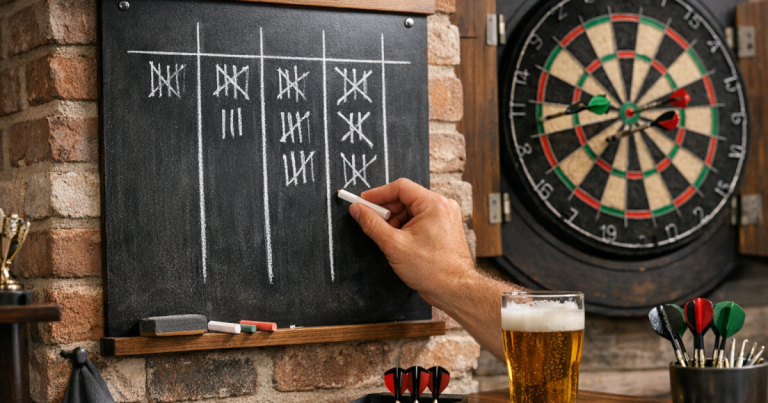
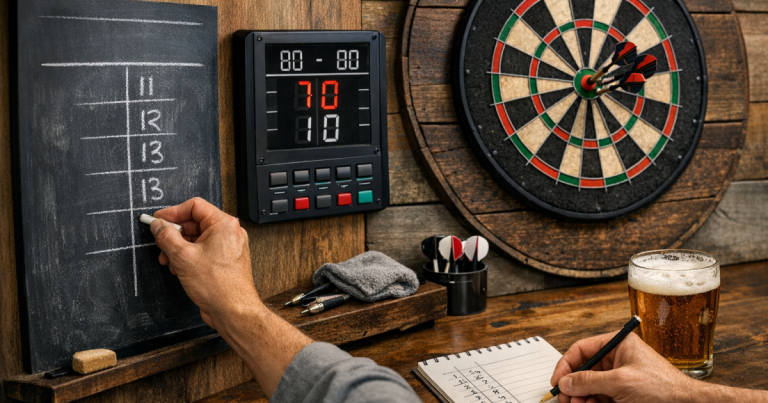
The TV shows the main score, but a chalkboard, whiteboard or wall scoreboard is still nearby. If the connection drops, the game continues. This is a sensible arrangement for mini tournaments, longer evenings or any set-up where people are taking the result seriously.
Troubleshooting when it does not look right
- If the edges are missing, change the TV picture size or aspect ratio settings.
- If the numbers are too small, increase browser zoom, device scaling or scoreboard text size if available.
- If the picture lags, try HDMI or move the scoring device and router closer together.
- If the TV keeps going blank, check sleep settings on the scoring device and power-saving settings on the TV.
- If notifications appear, turn on a focus mode or disable previews before screen sharing.
- If glare is the issue, move the TV angle slightly before changing the whole room layout.
FAQ
What is the simplest way to put a darts scoreboard on TV?
The simplest method is a laptop connected to the TV with HDMI. It avoids most wireless connection issues and makes score entry, corrections and display scaling easier to control.
Can I use a phone as the scorer and still show the score on the TV?
Yes, if your phone and TV support a compatible screen mirroring or casting method. Test it with a full practice leg and turn off notifications before people arrive.
Where should the TV go in a home darts set-up?
Place it where the thrower and spectators can see the score without blocking the board or standing in the throw area. A side wall or nearby media unit is often better than above the board.
Do I still need a wall scoreboard?
You do not need one, but it is a useful backup. A manual scoreboard also suits games where you want a quieter, simpler set-up without relying on Wi-Fi or device settings.
Why does the scoreboard not fit properly on my TV?
The TV may be cropping the image. Look for picture size or aspect ratio settings, then try options such as screen fit, original or full pixel depending on your TV model.
The big picture
A TV scoreboard works best when it supports the game rather than becoming the focus of it. Use HDMI for reliability, casting for neatness, and a clear high-contrast layout for readability. Once the display is easy to see from the oche and quick to score on, your home darts set-up feels more organised without losing the relaxed feel of a friendly night at the board.